Thank you for helping us test Nerveli
We’re excited to have you as part of our testing community. Your feedback helps us improve the experience and build a better app for everyone living with chronic pain.
Getting started only takes a few minutes, and no technical experience is required.
Before you begin
Please make sure you have:
- A compatible smartphoneiPhone running iOS 16 or later
- A stable internet connection
- The testing invitation email we sent you
- Access to the Apple ID associated with your device
Can’t find your invitation email? Check your spam or junk folder. Still missing? Reach out to us and we’ll happily resend it.
App installation
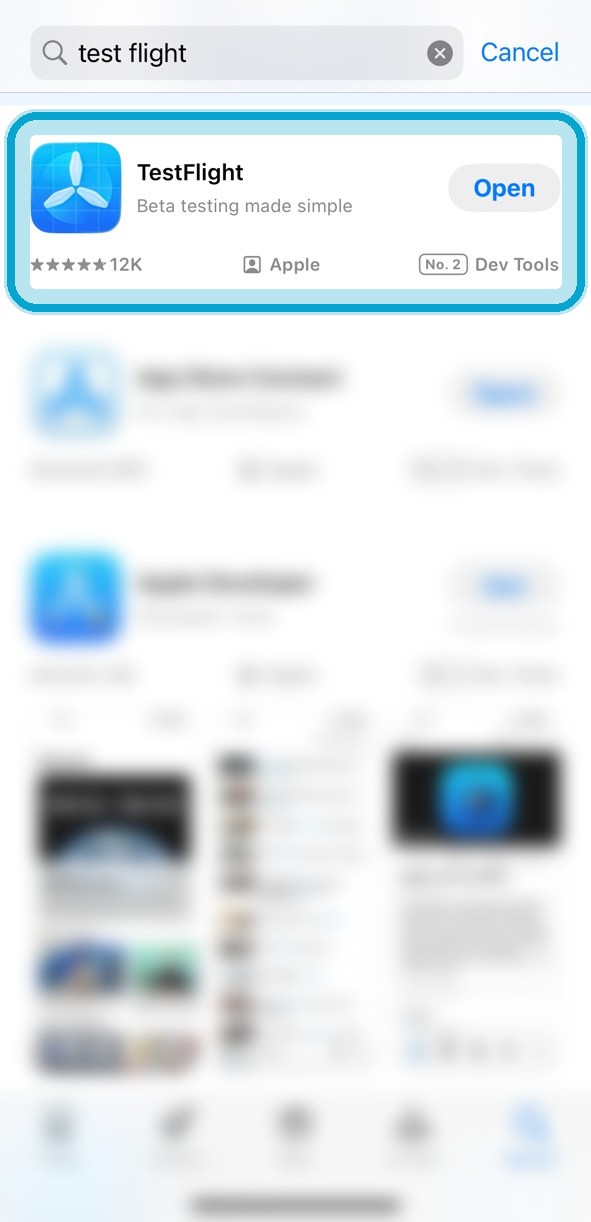
Install TestFlight
Apple uses TestFlight to distribute testing apps. You only need to do this once.
- 1Open the App Store.
- 2Search for TestFlight.
- 3Install the free app from Apple.
Accept your invitation
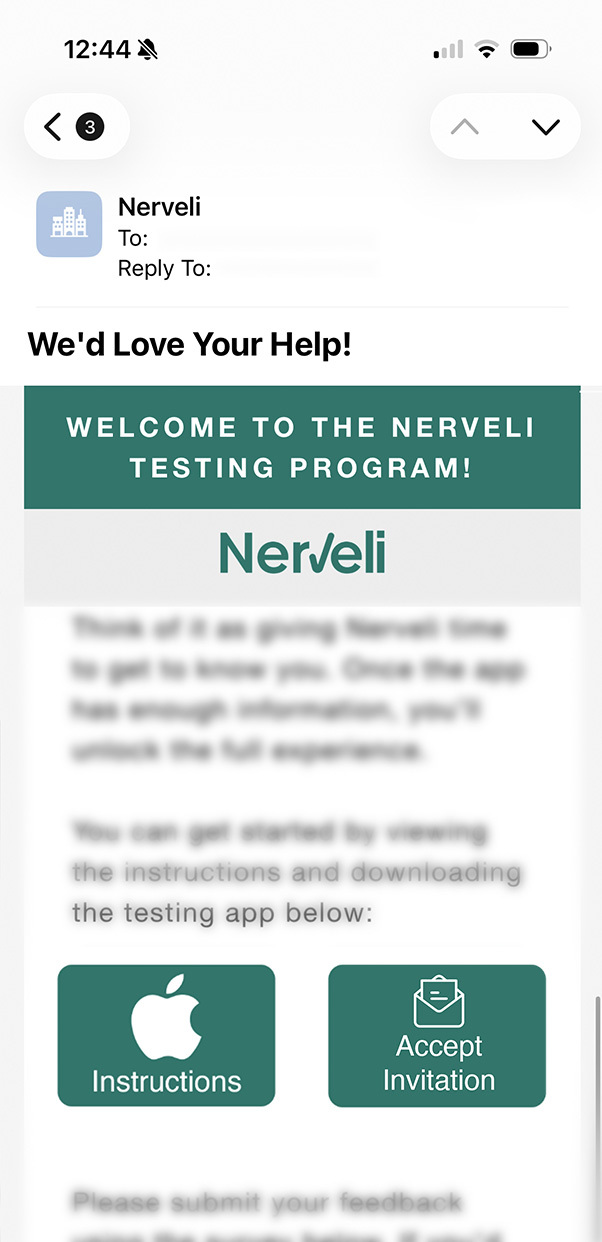
- 1Open your Nerveli invitation email on your iPhone.
- 2Tap Accept Invitation in the email to open Nerveli in TestFlight.
- 3When TestFlight opens, tap Accept.
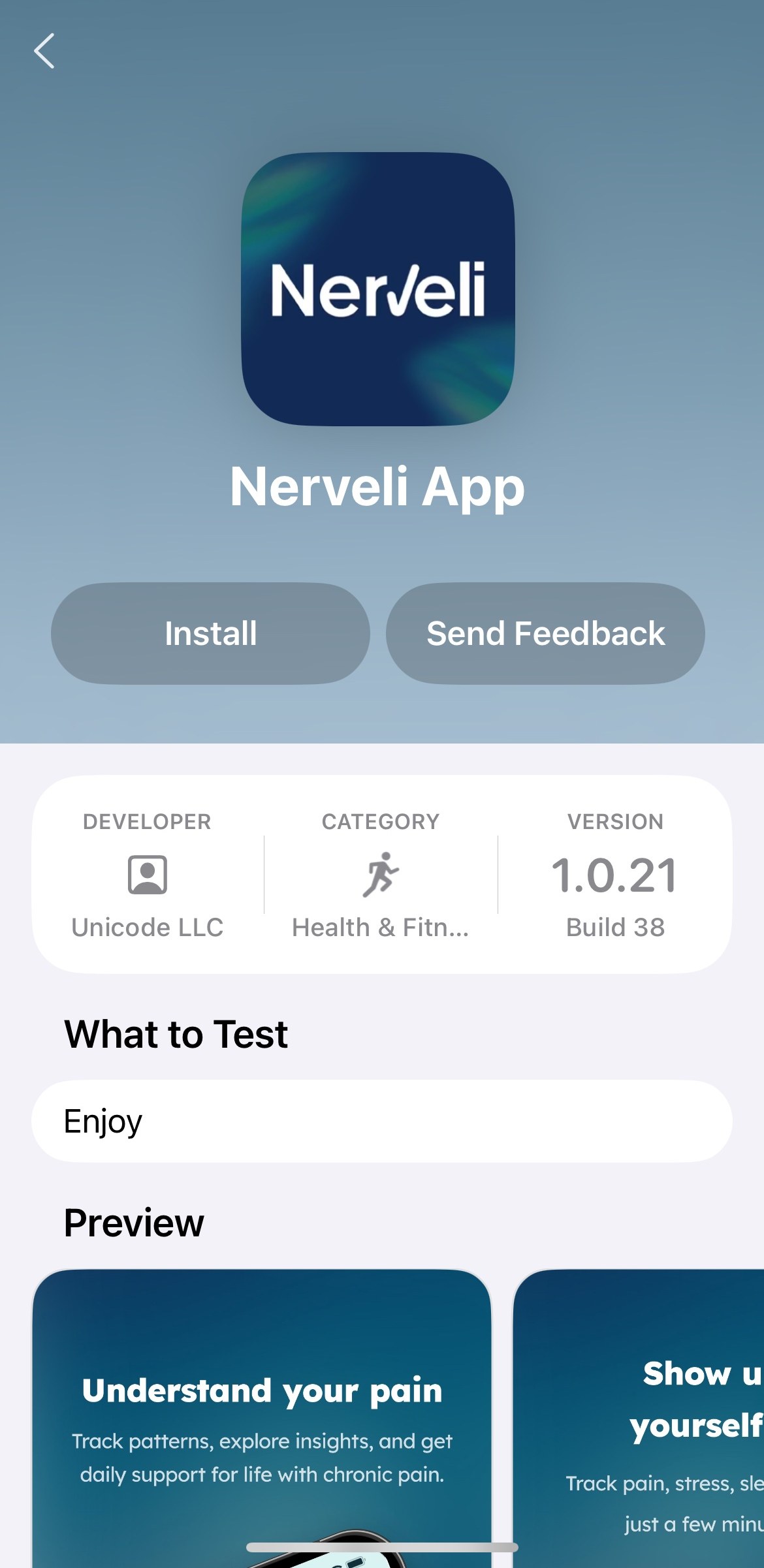
Install the Nerveli testing app
- 1Tap Install.
- 2Wait for the download to finish.
- 3Tap Open to launch Nerveli.
You’re ready to begin testing.
Keeping Nerveli up to date
From time to time, we’ll release new versions of Nerveli with bug fixes, improvements, and new features. To make sure you’re using the latest version, you’ll need to update the app through TestFlight. There are three easy ways to do it — choose whichever works best for you.
Turn on automatic updates (recommended)
The easiest option is to let TestFlight install new versions automatically.
- 1Open the TestFlight app.
- 2Tap Nerveli.
- 3Turn on Automatic Updates (the switch will turn green).
Update from a TestFlight notification
When a new version is available, TestFlight will usually send a notification to your iPhone.
- 1Tap the TestFlight notification.
- 2TestFlight will open to the Nerveli app.
- 3Tap Update.
- 4Once the download finishes, tap Open to launch the latest version.
Check for updates manually
If you don’t see a notification, you can always check for updates yourself.
- 1Open the TestFlight app.
- 2Find Nerveli in your list of apps.
- 3If an update is available, tap Update.
- 4When it’s finished downloading, tap Open.
Good to know: updating Nerveli won’t log you out or delete any of your data. Your app icon will also stay right where it is on your Home Screen.
Sharing feedback
Your feedback is one of the most valuable parts of the testing program. As you use Nerveli, we encourage you to share your thoughts, experiences, and any issues you encounter. Whether it’s a bug, a feature you’d like to see improved, or something you love about the app, your input helps shape the future of Nerveli.
Complete the testing feedback survey
When you’re ready to share feedback, please complete our tester survey. The survey includes questions about:
- Your overall experience using Nerveli
- Features you found helpful
- Bugs or technical issues you encountered
- Suggestions for improvements
- Any additional feedback you’d like to share
Have screenshots or screen recordings you’d like included? Email us in addition to completing the survey.
Reporting urgent issues
If you experience a major bug, app crash, login issue, or anything that prevents you from using the app, please contact us directly so we can investigate as quickly as possible.
Email us with anything blocking you. We monitor this closely during testing.
If possible, include:
- What you were doing when the issue occurred
- What happened
- Any screenshots or screen recordings that may help us understand the problem
Thank you for taking the time to share your feedback. Every response helps us build a better Nerveli experience for our community.
Troubleshooting
Quick fixes for the most common setup hiccups.
I can’t find my invitation email.
Check your spam or junk folder. If it’s still missing, email us and we’ll resend it.
The app says it’s unavailable.
Wait 15–30 minutes after accepting the invitation and try again. Tester access can take time to activate.
The app won’t install.
Make sure you have enough storage space and a stable internet connection, then try again.
The app crashes or won’t open.
Close the app completely and reopen it. If the issue continues, send us feedback so we can investigate.
Good to know
- Testing versions may receive frequent updates.
- Your data is protected using the same security standards as the public version of Nerveli.
- You can leave the testing program at any time.
- Nerveli is designed to support your wellness journey, but it is not a substitute for professional medical care. If you are experiencing a medical emergency, contact your healthcare provider or emergency services immediately.
Need help?
We’re here for you.
If you run into any issues during setup or while using the app, contact us.
Thank you for helping us build a better Nerveli.